On Friday of last week, we posted some pretty significant to updates to OCC, with some further refinement this week:
Print Chat
This is a new feature for visitors to your website requesting a chat. Directly from the chat window, visitors can print a transcript of the chat they’re having with you or your operators. The Print Chat option is automatically enabled for accounts but can be disabled from your Account Dashboard under Setup > Basic Settings > Global Account Settings
Check out the look of the new button below

Offline Settings – Hide Icon & Disable Offline Messages
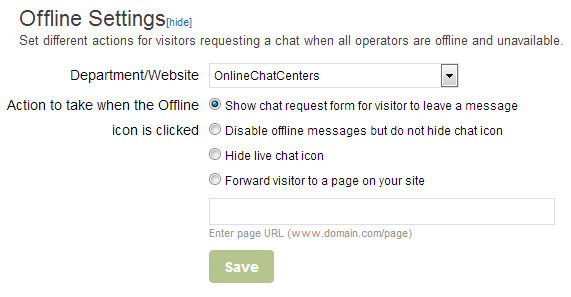
We added 2 more Offline Settings that were highly requested by our users. Both of these options are for Premium & Enterprise users only and can be found in your Account Dashboard under Setup > Basic Settings > Offline Settings
Each of these settings is definable per department/website like most of the other features within OCC:
Disable offline messages but do not hide chat icon – When all your operators are either hidden or offline, this option will show your offline icon but will disable offline messages. It is a setting we had before but it was not able to be set per department.
Hide live chat icon – When you’re offline, this setting will NOT show your offline icon but will instead completely hide the icon. OCC is still tracking visitors to your site but the icon will not be displayed to visitors.
Canned Messages – Initial per department and per operator
Canned messages can now be individualized further by having the initial message defined per operator or per department or both!
Find this function in your Account Dashboard under Setup > Messages > Canned Messages
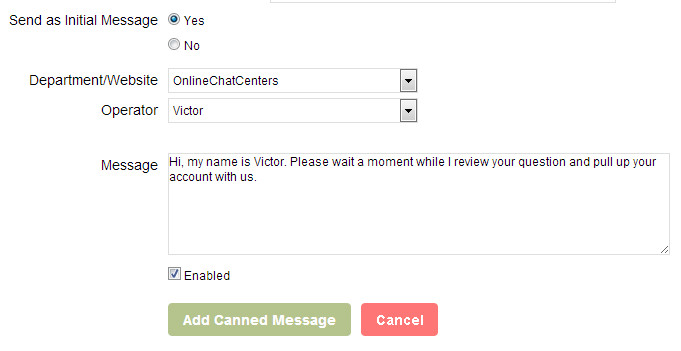
In the example below, if “Send as Initial Message” is selected, you can then choose which department/website and/or operator will use the message as their initial greeting to the chat visitor. The per operator selection will override the department selection.
For example:
1. Message A is set for all departments
2. Message B is set for the OCC department
3. Message C is set for OCC department and Victor
4. Message D is set for all departments and Brandon
All operators will send Message A for all departments except OCC department which sends Message B except if Victor accepts the chat then it is Message C.
If Brandon accepts a chat from any department, he sends Message D.
There are checks for each scenario that will prompt you if a conflict arises. Below is an example of how the initial message setting now looks:
Translation Statistics
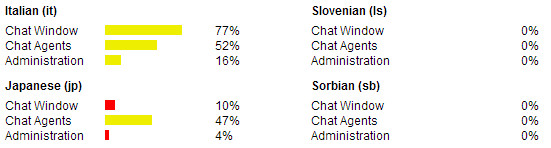
And, finally, we added some pretty cool and useful graphs to our Translation Program that displays what percentage of each language we have translated for each portion of OCC for each language.