Posts Tagged ‘OCC Agent’

OCC Agent Update – Win & Web – Supervisors, Visitor Info

Written by: Categories: Features,News
July 29th, 2013

We have just released new OCC Agents for Windows and web. Mac update coming soon!

What’s New

The new update includes the following new features:

1. Supervisors – Ability to close chats without ending them

2. Supervisors – Ability to send message to just the operator or the whole chat

3. New data in visitor info

4. New icons for visitor info

5. Minor bug fixes

Supervisors – Close Chat & Messaging

Supervisors monitoring a chat can now only close chats and not end them. They can also send messages to either both the visitor and the operator or just the operator.
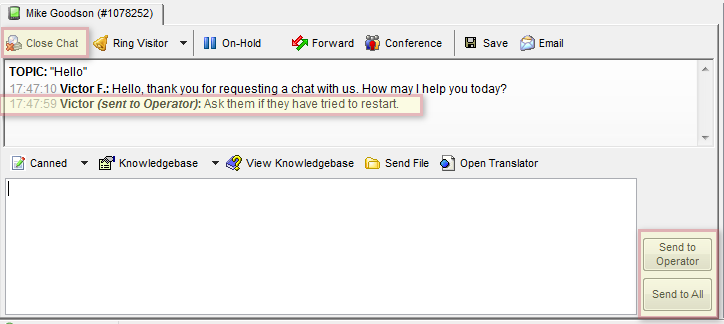
supervisor-changes


Visitor Info Changes

These visitor info changes were released on all OCC Agents prior to this announcement but now the columns are customizable through the View drop down menu.

We added more information about each visitor including:

  • Traffic source
  • Search keyword
  • Landing page

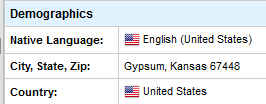
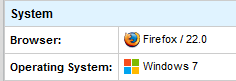
We also added icons for country, system, traffic source and browser.

navigation

demographics

system


Minor bug fixes

Fixed the hidden status being unavailable to operators that do not have it enabled in the Account Dashboard.

Agent Updates – Chat Tabs, Mac & More

Written by: Categories: Features,News
April 3rd, 2012

Greetings Chatters!

Earlier this week we released updates to all of the OCC Agents with some feature updates.

Download the latest version of the agents here:

OCC for Windows : Version 2.0.57.1
OCC for Mac : Version 1.12
OCC Web Agent

Here’s what’s new:

Supervisors – Chat Tabs don’t Remain

After launching the previous update with chat tabs remaining in the chat after they end, supervisors would have many chat tabs for all the Operators that are listed under their department. Chats that had ended and active chats. Now other operator chats do not get viewed until they are clicked on by a Supervisor, making the Supervisor mode much more manageable.

Topic – Added to the top of Chats

The topic of the chat is added to the top of chats so it can be easily viewed right in the transcript. A small edit but will be much needed in our upcoming mobile apps!

Pagination in Chat History, Missed Requests, Offline Requests

All the Chats areas now have pages added to improve speed and improve the viewing experience of these sections.

Chats at Top of Visitor List

Chats are now listed at the top of the visitor list for easier access and viewing, effectively dividing the Chats and Visitors into 2 different areas. This is only available in the Windows and Web versions.

Web Agent: # of Messages in Page Title

In the web version, the # of messages are now actively refreshed in the page title, giving a visual indicator to Operators that they have unread messages.

Mac Agent: Updating, Hotkey Chat Switching, New Look

Auto-updating now works – make sure to have it checked!

Switch between chats – Switch between chats in the Mac version by hitting (CMD+TAB)

New look – We added some slicker buttons 🙂

OCC Live Chat for Mac

OCC for Mac - New Look!

Under the Hood – Minor Fixes

Some other minor stuff was fixed including:

  • Real Time Translation Update
  • Updated Language Captions
  • Chat Forwarding Issues (when chats were forwarded more then 2x)
  • Speed Improvements


Download the latest version of the agents here:

OCC for Windows : Version 2.0.57.1
OCC for Mac : Version 1.12
OCC Web Agent

OCC Agent Updates: Chat Tab Names, End Chat Message, Email Chat Transcript

Written by: Categories: Features,News
June 1st, 2011

Today we released an update to all of our OCC Agents which includes the following updates:

Chat Tab Names

Chat tabs now contain the name of the visitor as well as the unique ID of the chat visitor.

chat tab names

Chat Tab - Names

End Chat Messages

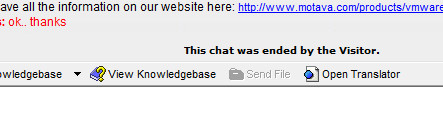
The message displayed at the end of a chat are now more descriptive, showing whether it was the visitor or the operator who ended the chat.
Screenshots of the ended chat messages seen below:

OCC live chat ended by visitor message

Chat ended by Visitor

OCC live chat ended by Operator

Chat ended by Operator

Email Chat Transcript from Chat History

You now have the ability to email the entire chat transcript from individual chats found in your chat history. This is available through all the OCC Agents and the Chat History section in the administration section. The screenshot below is from the administration section.

Email Chat Transcript from Chat History

Email Chat Transcript from Chat History


Some other minor edits were also included:

– Columns in the Agents were changed – Current Page was added to display the current page the visitor is browsing.
– Messages displayed for users joining and leaving chat conferences were added.
– Messages displayed for chats being forwarded changed.

Download / Access the latest OCC Agents:

OCC for Windows
OCC for Mac
Web Agent


Mac OCC Agent Beta version 1.7 Released

Written by: Categories: Features,News
March 17th, 2011

The Mac OCC Agent Beta version 1.7 is now released and available for download.

You can download the latest version, version 1.7 here:
Download OCC Agent for Mac

In this latest version we added:
# Live Spell Checking

Features still in development:
* Multi language translation

Stay tuned to our blog or twitter for more updates!

Chats Sections: Redesigned

Written by: Categories: Features,News
June 30th, 2010

One of the most important features of a live chat system is being able to look at your chat history and respond to offline and missed chat requests.

We’ve been redeveloping these sections of the administration section and both the web and desktop chat agents to be more user friendly and efficient to use.

Before – Missed Chat Request

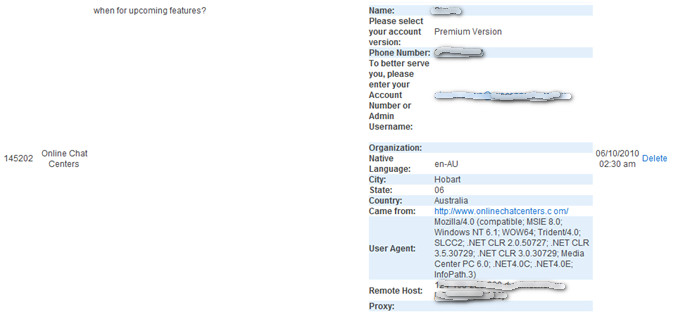
Our old layout in the administration section lacked definition between chat requests, lacked functionality in contacting visitors and displayed information in an inefficient manner, putting too much focus on the visitor’s information rather than the topic/question they asked.

Missed Chat - Old Design

Missed Chat - Old Design


After – Missed Requests, Offline Messages and Chat History

The old menu lacked other essentials – mainly, the ability to email chat request visitors and the offline messages were not viewable at all. Although accessible through the chat agents and sent via email, a central location for all missed requests in the dashboard was needed.

The redesign of this section can be seen below:

Offline Message - After Redesign

Offline Message - After Redesign


The chat request information was all neatly condensed for easy browsing, with all 3 sections listed in a similar fashion. The request information is no longer so large, showing only critical information about the chat request with the full information regarding the visitor accessible by clicking the “View All Request Information” link.

In addition, we’ve listed 3 actions to take with the request – email the visitor, mark the request as processed and delete it completely from your history.

Emailing the visitor will automatically populate the message with all the request information in your default mail client software:

Automatically populated Email from Chats Section

Automatically populated Email from Chats Section

We’ve also added a new filtering option for our users with multiple departments or websites and search functionality within the Offline Message and Missed Requests section:

Search Filters within Offline & Missed Requests

Search Filters within Offline & Missed Requests

All the design changes have also been implemented in the web and desktop chat agents, easily accessible from whatever location you are monitoring your site from!

New Agent Software Release with Translator

Written by: Categories: Features,News,Uncategorized
May 12th, 2010

ATTENTION PREMIUM VERSION ACCOUNTS

Now with Premium Version you have REAL TIME TRANSLATOR built-in to your OnilineChatCenters OCC AGENT Software and Web Agent.

Now you can support any language….and it’s FREE to Premium Version Accounts.

Download the latest OCC AGENT SOFTWARE HERE

***NOTE: Vista and Windows 7 users: please download EXE to desktop, right click and select Run as Administrator in order to install.

Happy Chatting!