
Small update for those who are on the iOS platform.
We have submitted the app to apple for approval, when it has been accepted will will be updating you for the release of the app


Small update for those who are on the iOS platform.
We have submitted the app to apple for approval, when it has been accepted will will be updating you for the release of the app
*For Premium/Enterprise Users Only*
If you haven’t looked in a while, please check our chat window section (Account Dashboard > Setup > Design Customization > Chat Window) for more color customizations. With this new feature, you will be able to customize the chat windows to match your website!
Premade are the color schemes that you can select quick to meet your color preferences.
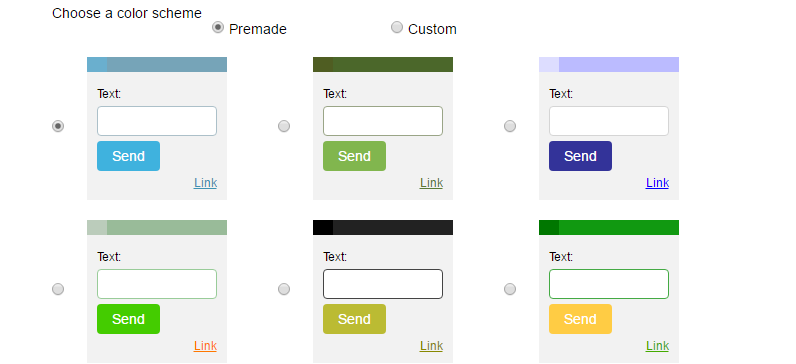
Below are the tools to customize the chat match your CSS/Site style. To do this, you will be using RGB color picker or enter in the color hex code (here are some color hex codes as an example http://www.color-hex.com/). Just select a category you wish to edit (Column, Top Bar, etc.…), edit the color and check the preview box below.
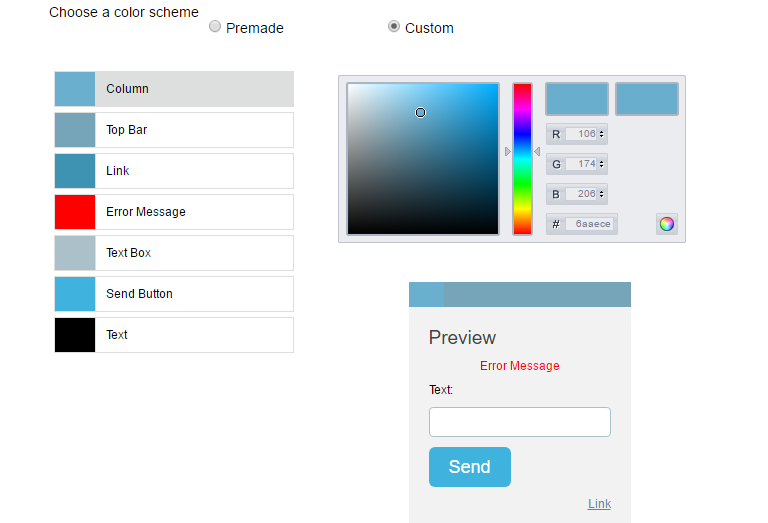
We hope with this new tool it will help you integrate OCC into your site more cleanly.
OCC is pleased to announce SMS / Text Messaging live chat support!
Now, by placing the generated HTML snippet to your site, mobile browsers will see that they can open a chat request via SMS/Text Messaging.
That’s right, no pinch and zoom to show text areas and boxes.
Your potential or current customer/visitor can now chat within you OCC Chat Agent from their Mobile Phone SMS app.
Please go to your Account Dashboard and proceed to the apps section: Setup > Apps > SMS/SIP Management. You will need to first purchase a number. Most US numbers are $24/year, but this may vary depending on where you live. Text messages are purchased in build of 1,000 messages for$20.

First choose your country, then area code. Then a pattern which your number can be based on. For example, our number is 1-408-622-9687 (1-408-OCC-9687)
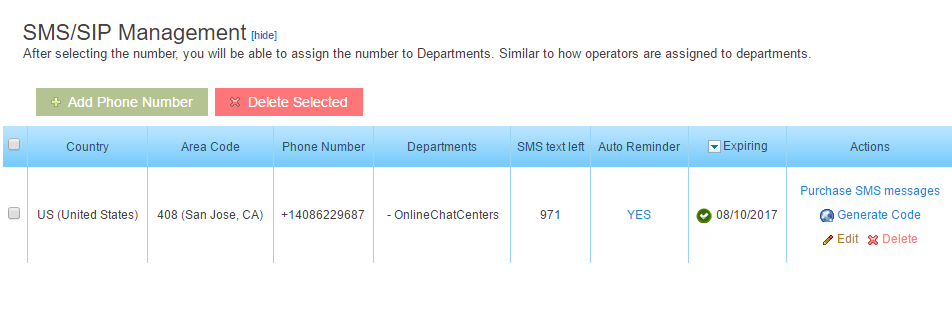
After you purchase your number, in this menu you can view your number, how many messages you have remaining, purchase more messages, auto message refill reminder, generate html code to place on your site, edit and delete the number.
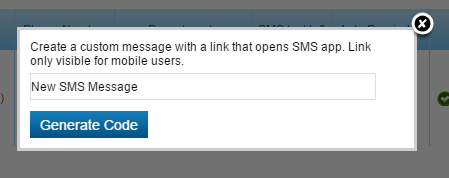
Generate a code will generate a snippet of HTML code that you can place on your site. You will be able to write a line of text that will appear only on mobile browsers. If visitors click on the text it will automatically open their default messaging app.
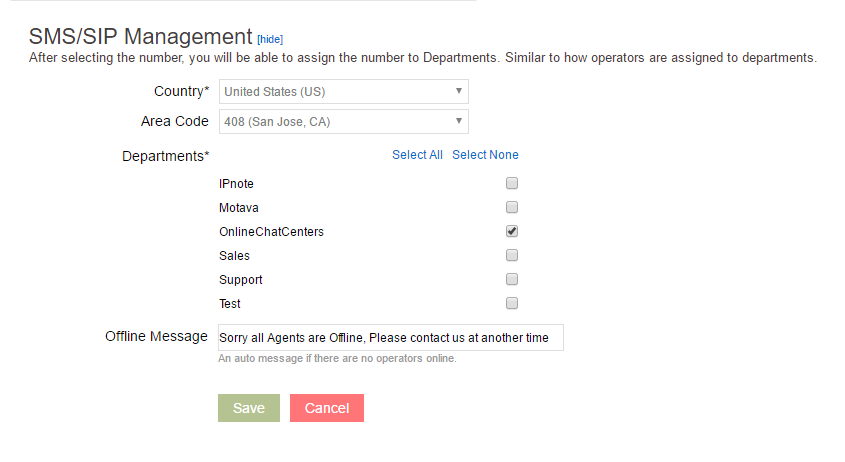
In the settings you can choose which departments, you wish to be associated with the number and have a message sent out to the phone numbers, if there are no operators online.
We know that new features or systems can get confusing or challenging especially with your busy schedules and responsibilities, and that’s why we at OCC are always ready to assist you if you need help in getting this up and running. See you online!
-Kevin
Hello OCC customers,
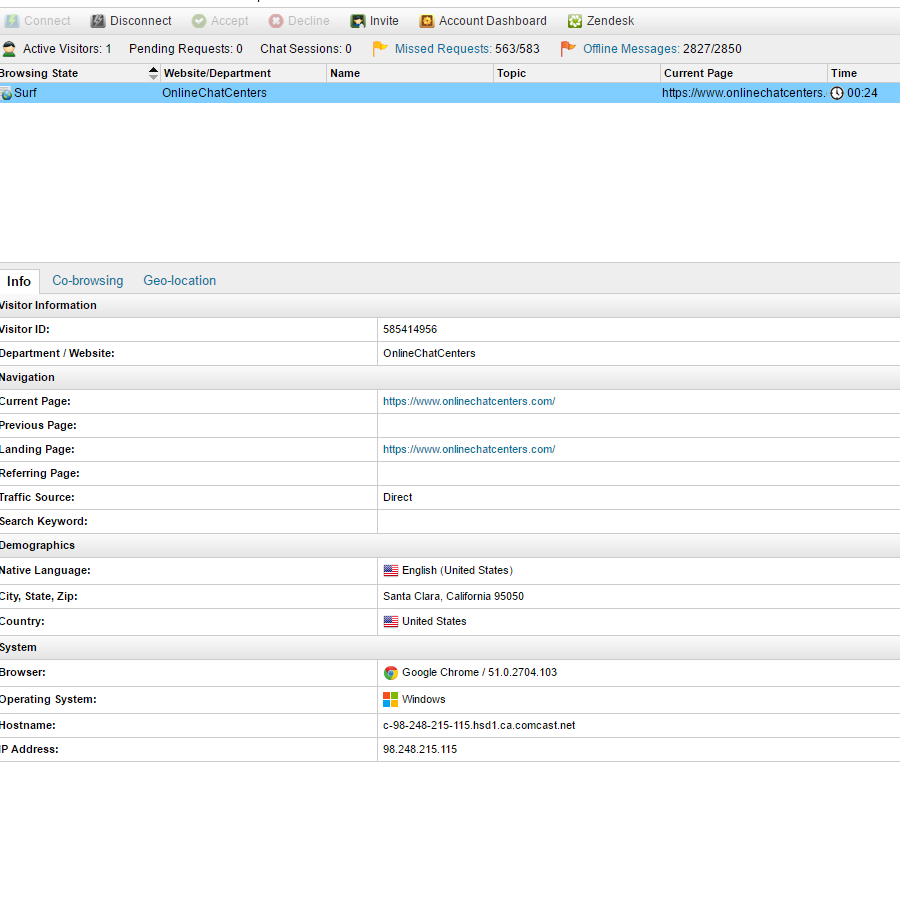
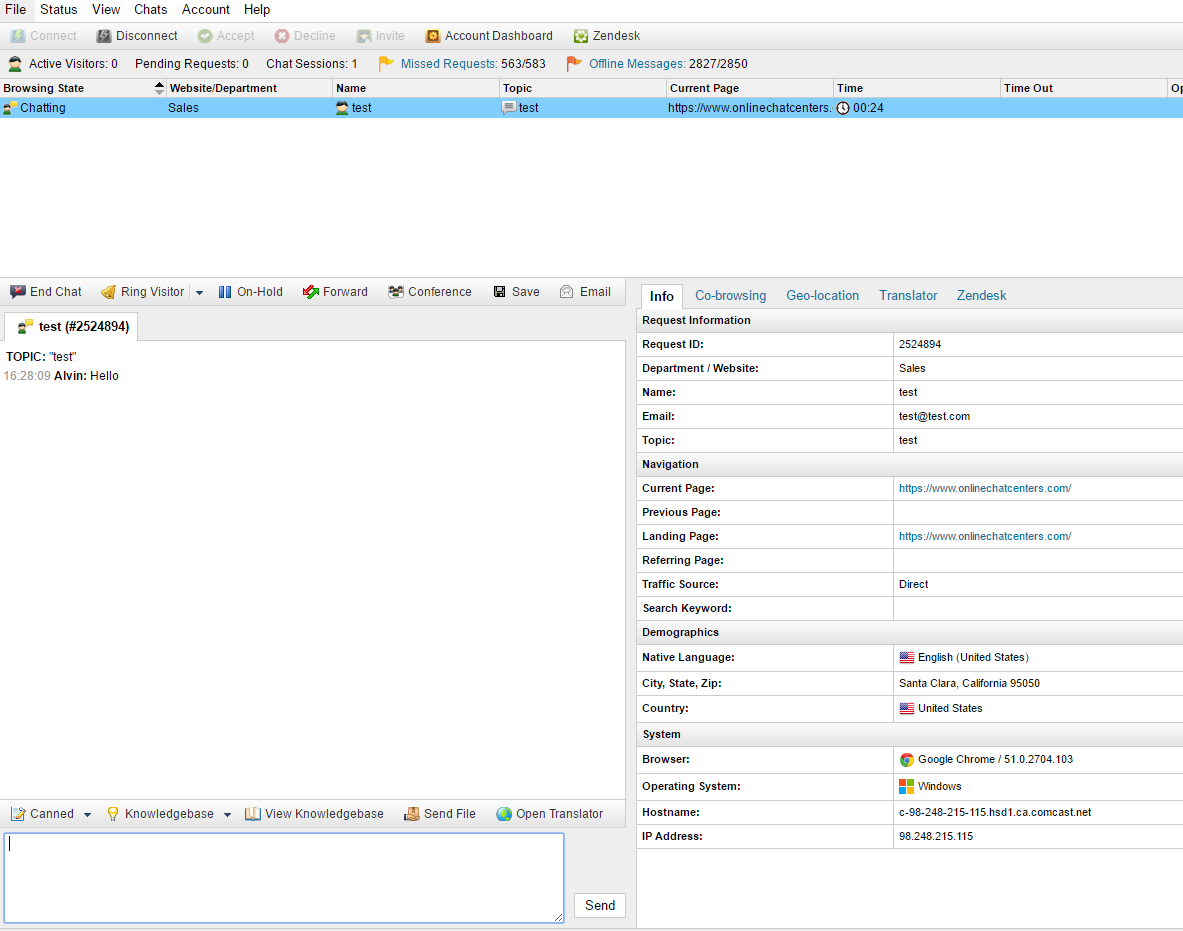
With several browsers failing to support Adobe Flash, we have developed a new HTML 5 version of the web agent. We will release a short beta to find any bugs. The live version for all users will be released following the resolution of any bugs.
Click here to test the beta version of the HTML 5 web agent: http://www.onlinechatcenters.com/agent-beta/
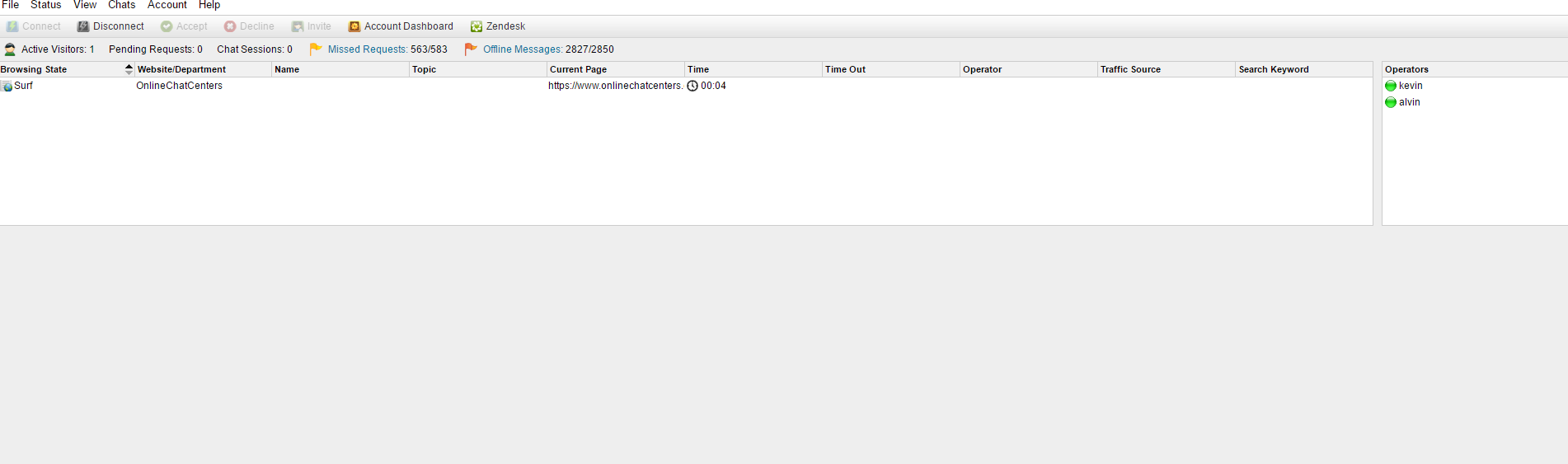
If you find any bugs with the agent, please feel free to send a message to OCC at support@onlinechatcenters.com
Thank you very much.
Happy Mother’s Day OCC Customers,
The OCC ANDROID APP is now in public beta testing.
Here’s how to download it:
Step 1 – Phone Setup: Go to Settings on your Android Phone and tap on Security
Step 2: Make sure “Unknown Sources” is checked
Step 3: Go to our download page through your Android phone to download the apk. Here’s a direct link to it if you’re on your phone now: OCC for Android Beta APK
The app is in beta, so if you find any bugs or have any comments please help us improve the product by sending a message to support@onlinechatcenters.com or open up a chat.
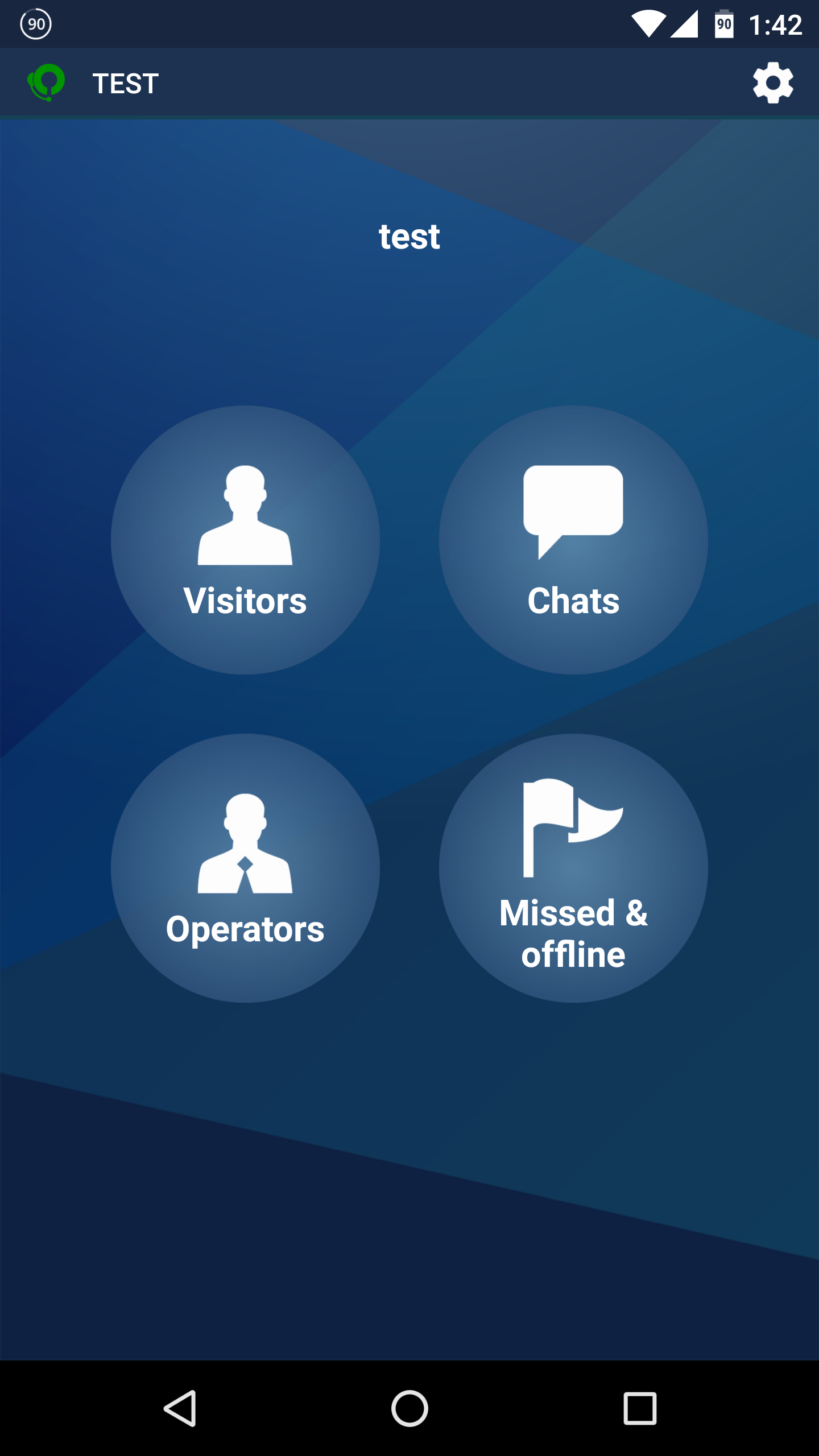
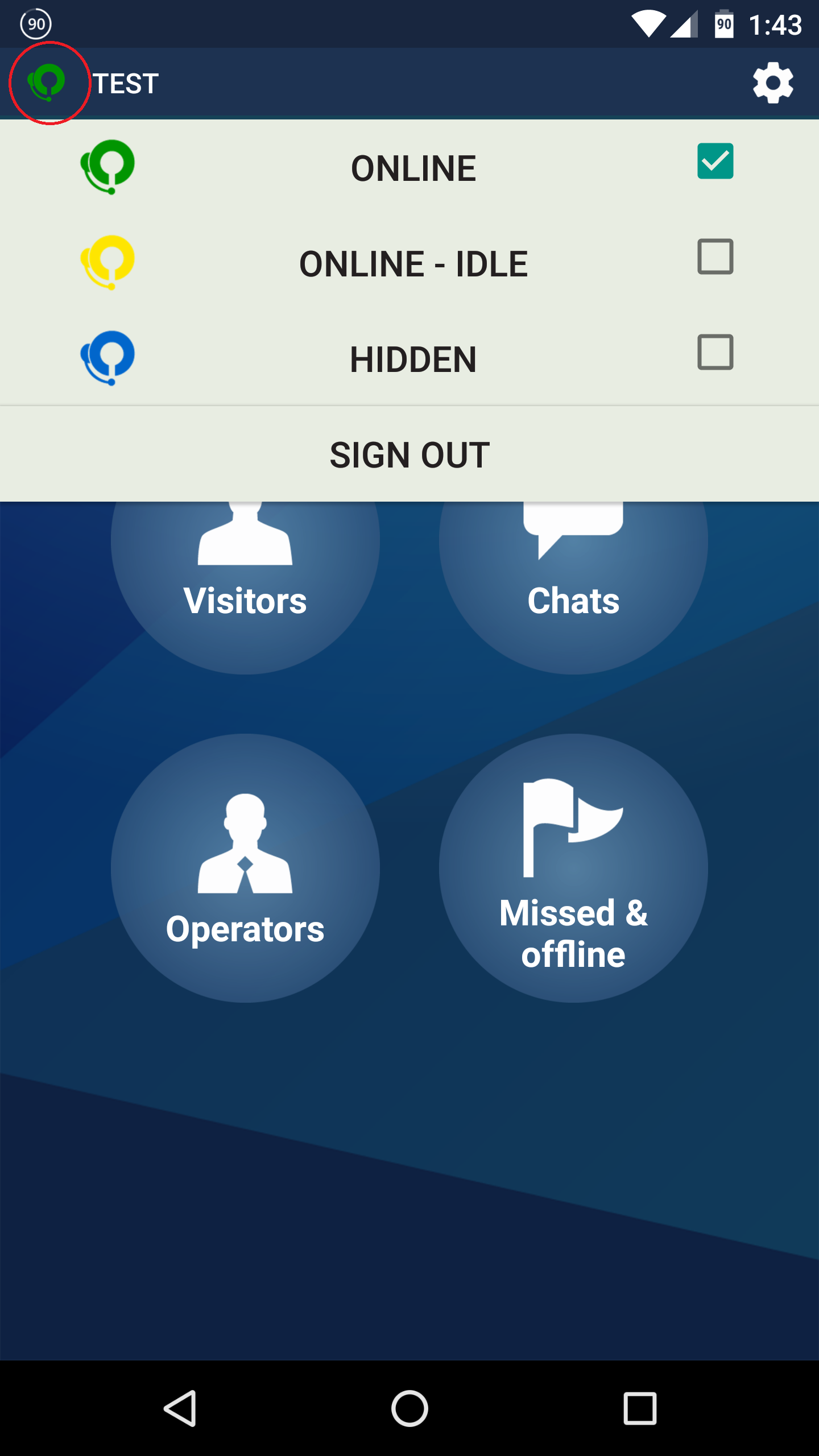
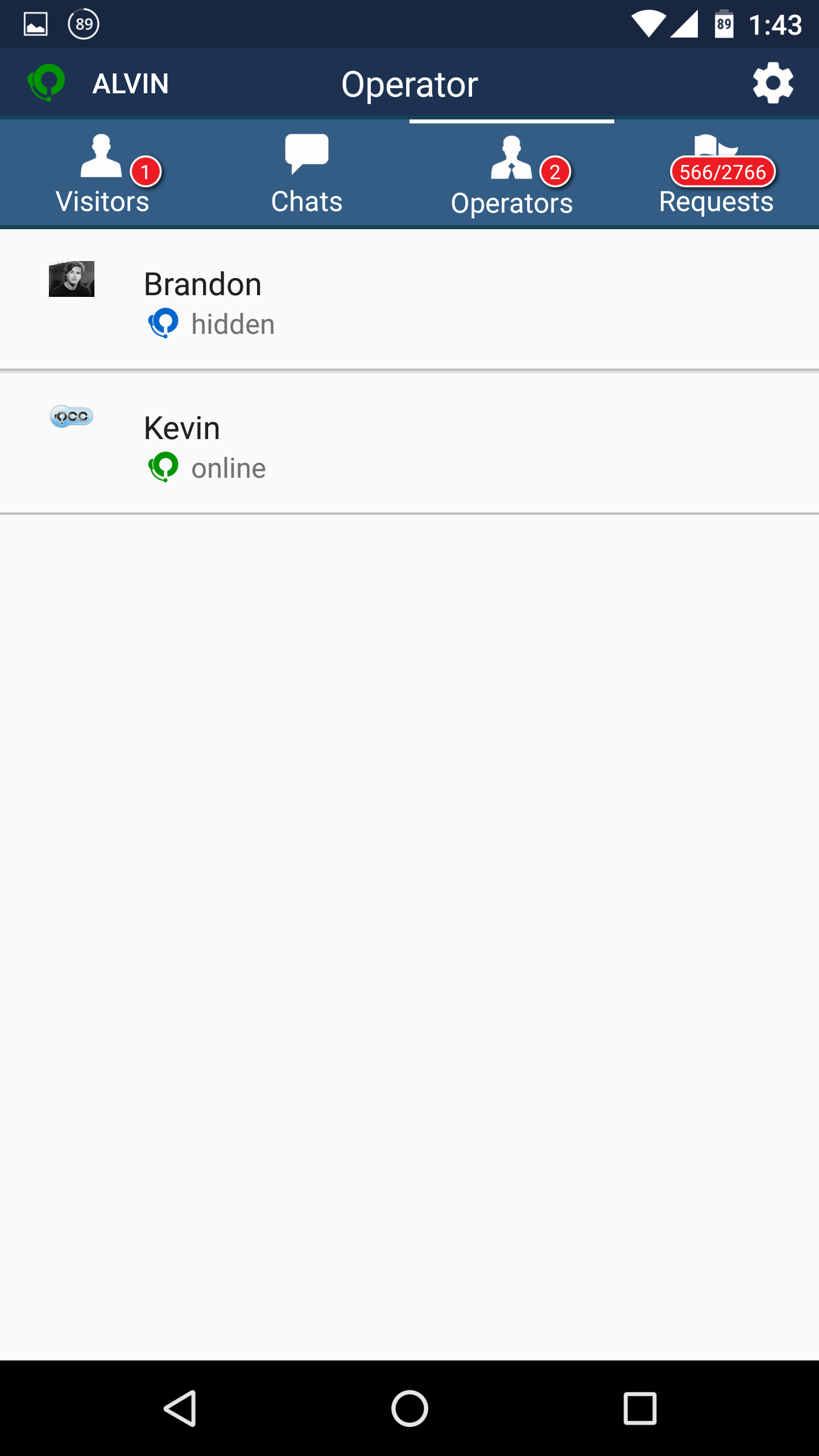
This is the home screen of the app. In here you will see how many visitors are on the site, chats occurring, operators online and any missed/offline messages. If you click on the top left corner it will open the menu to change the operator status.
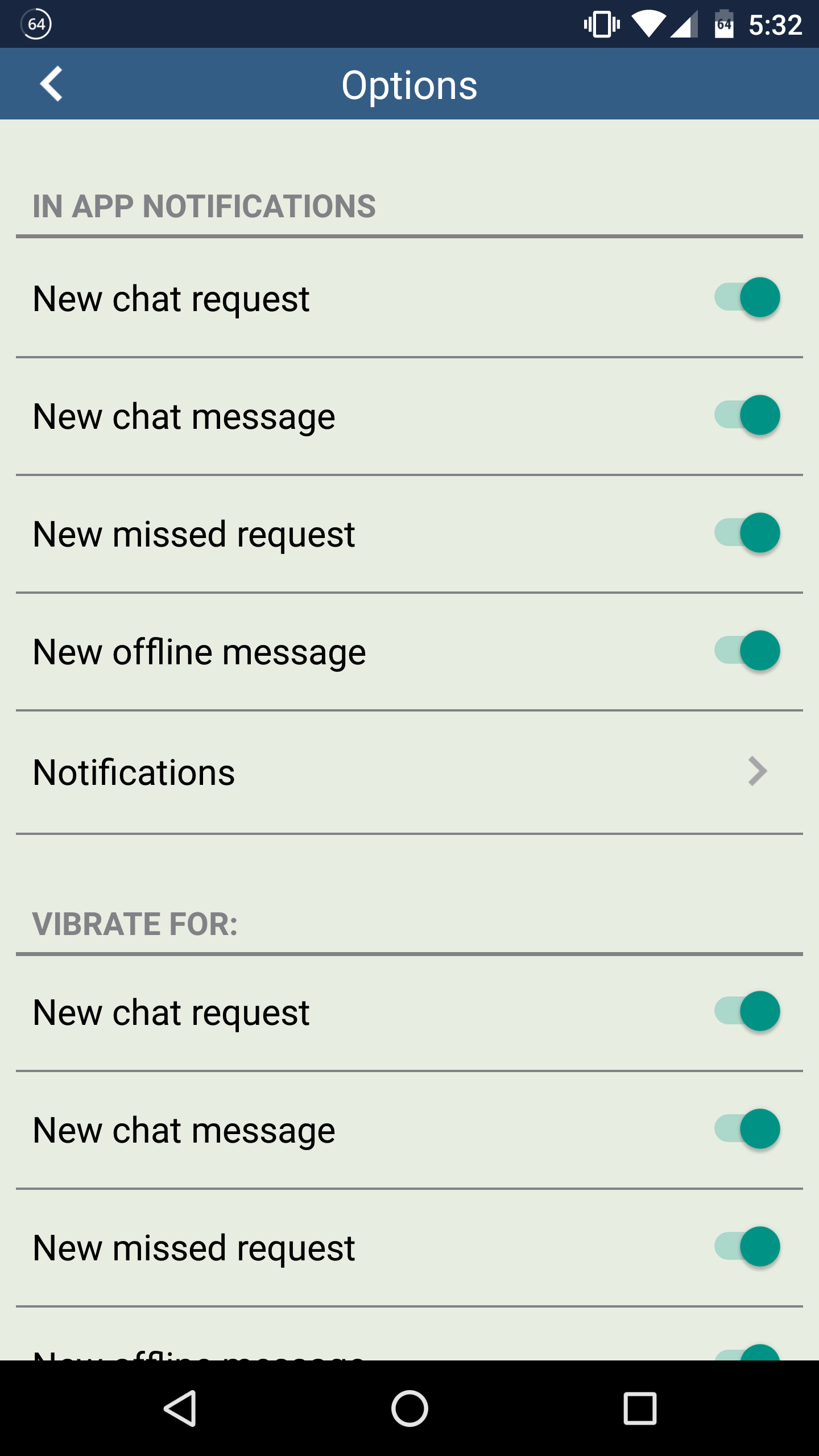
If you click on the cog in the top right, it will open the Options menu. In here you will be able to turn on/off any notifications and change the auto status timers.
Here at the view of the operators (left) and visitors (right)
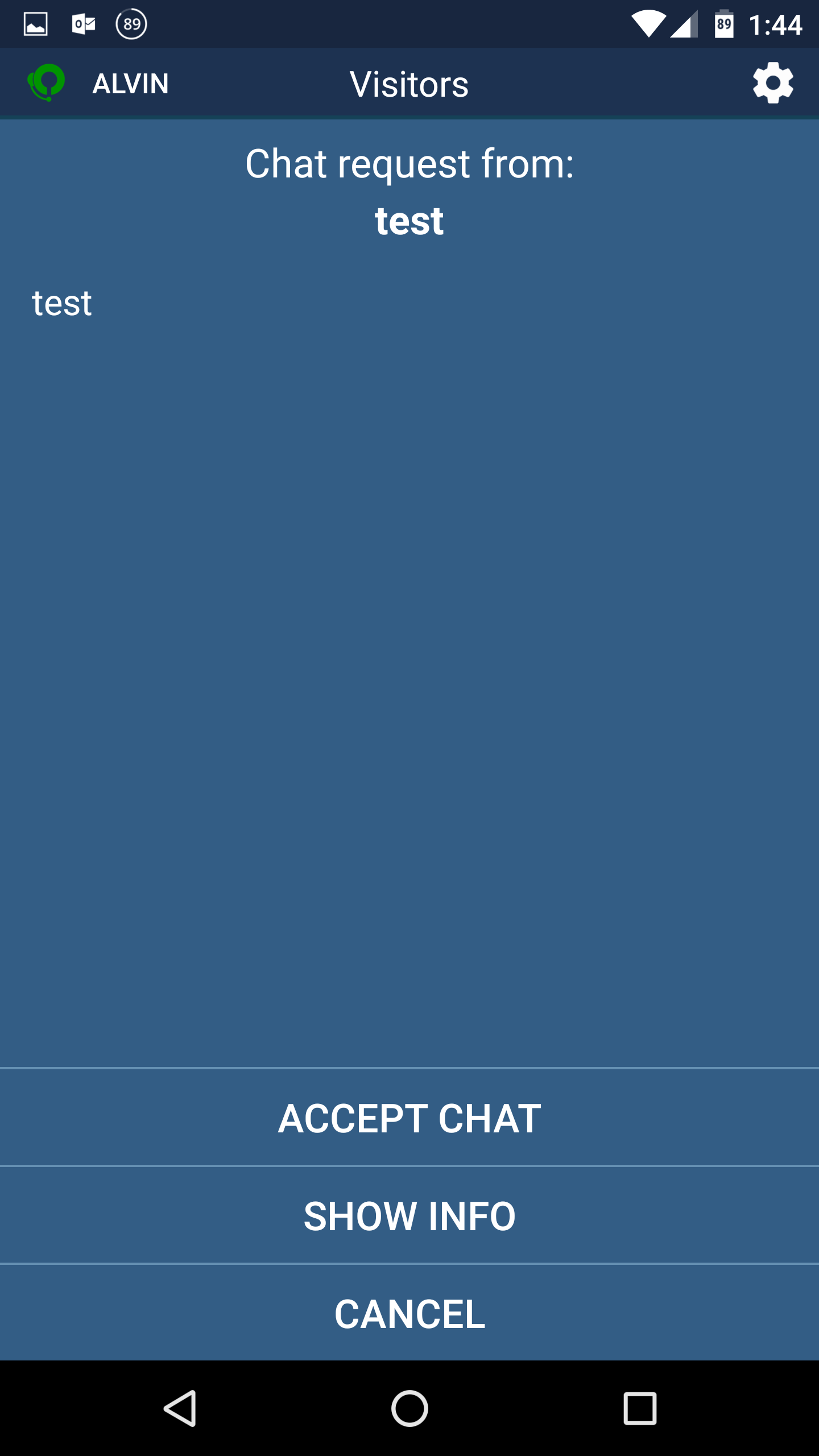
When there is a customer request you will be notified by both a visual and sound notification. Before accepting the chat, you will be able to see the customer information which includes chat request form, ip address and location.
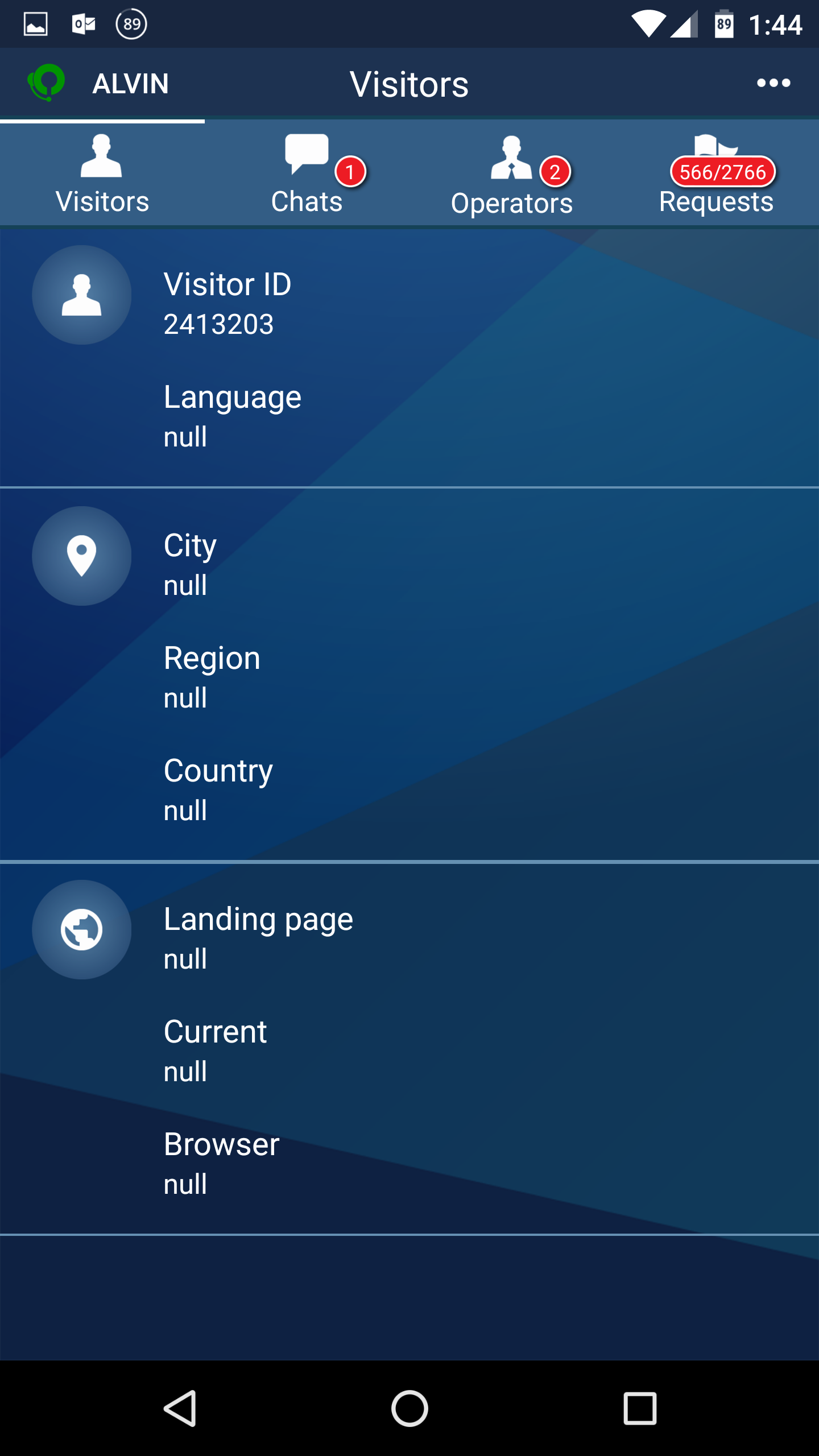
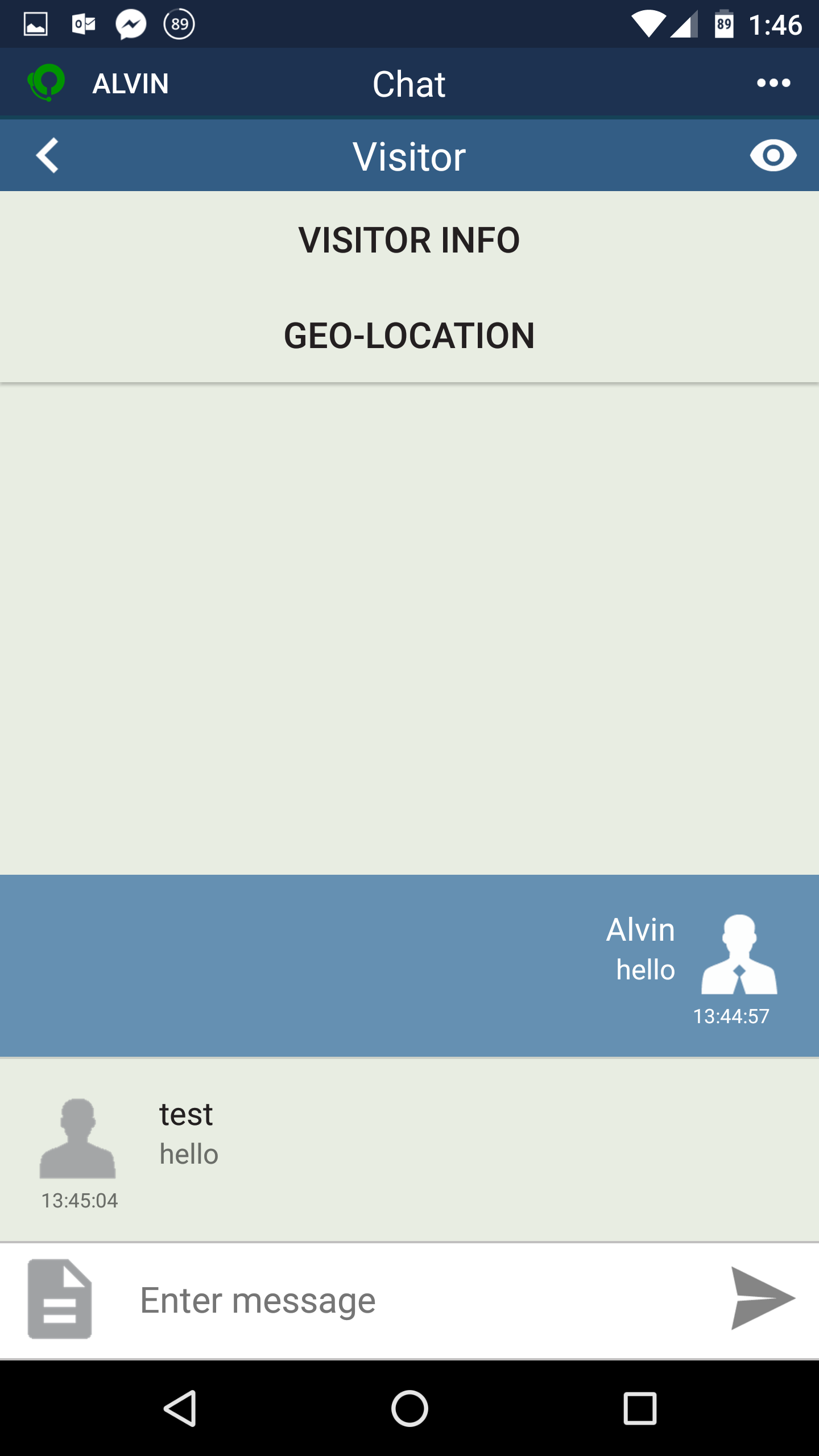
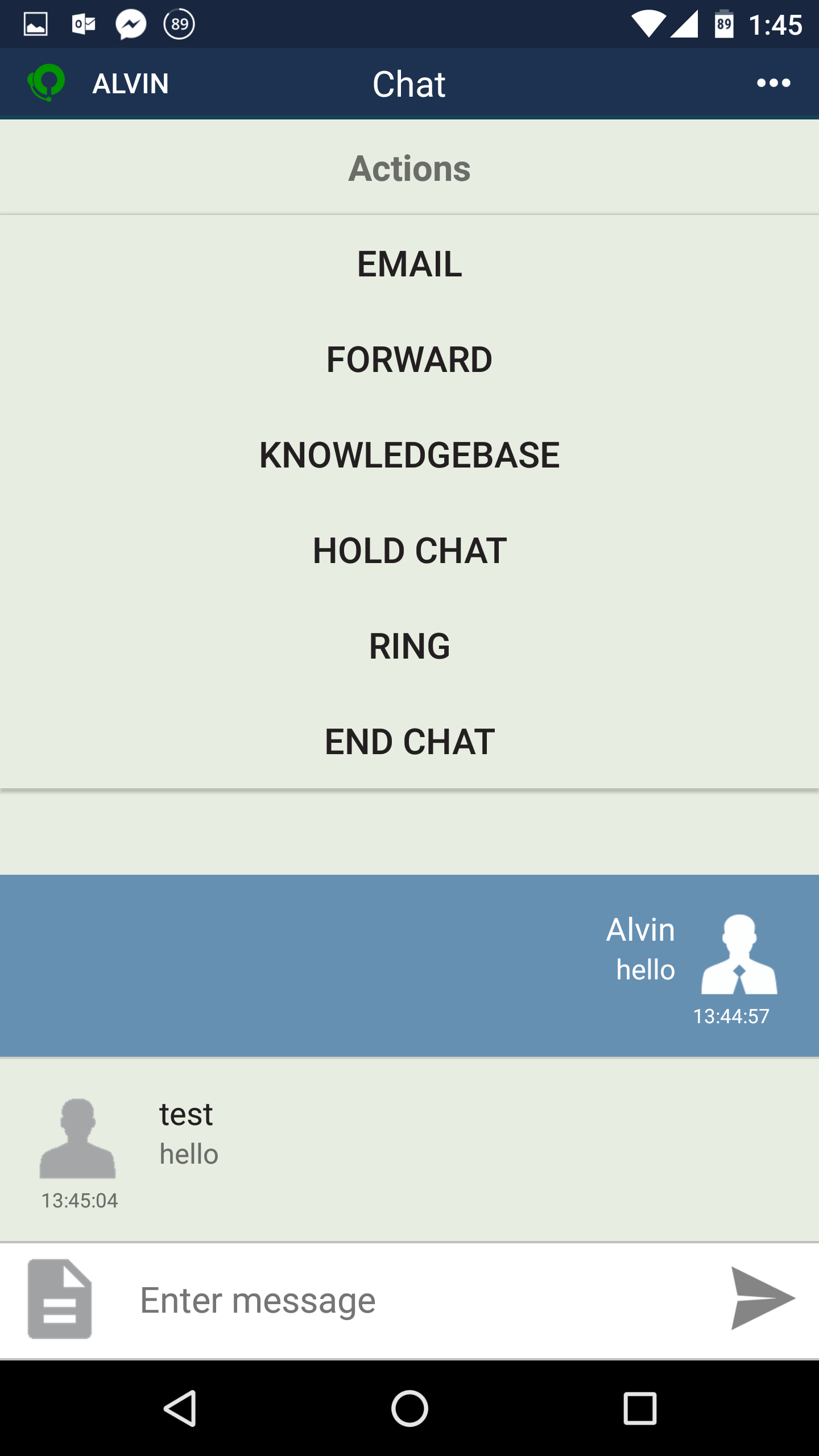
You can click on the eye to open a menu to view the information and geo-location. For additional menu item if you click on the 3 dots ( ••• ).
Happy Spring OCC Customers. We are proud to introduce Zendesk integration for OCC, currently we have it implemented for Windows and Web agent. The mac version support will be release soon with the latest update.
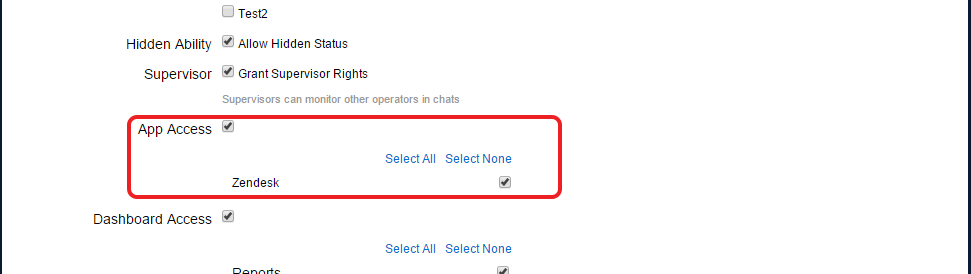
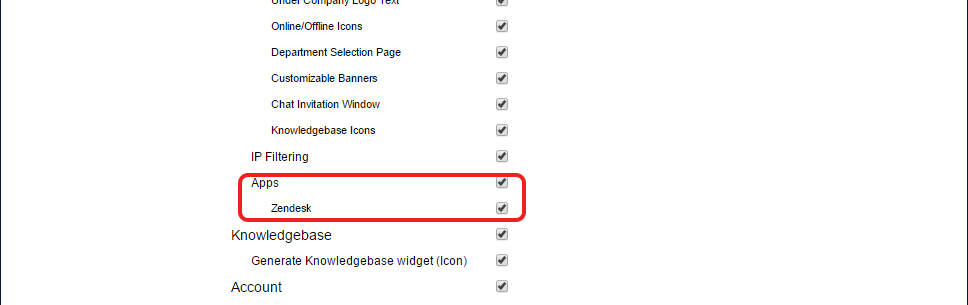
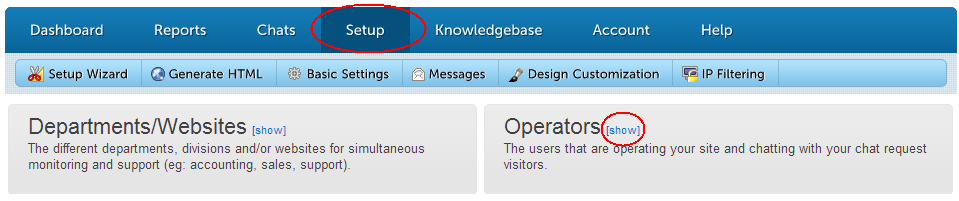
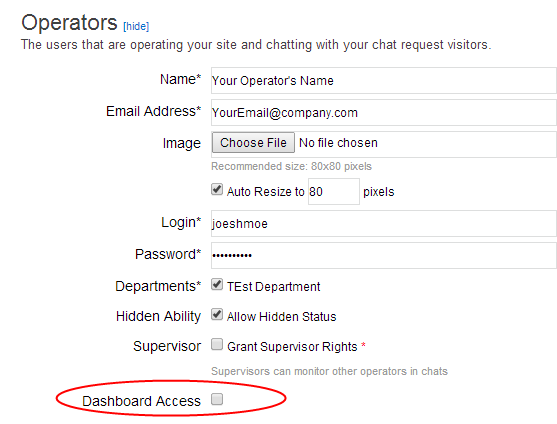
You ask for it and we are delivering for your customers. OCC is proud to introduce that we are implemented Zendesk integration. To enable access to the app, go to the Account Dashboard > Setup > Operators > Edit and enable app access and enable apps in setup
.
After you have enable dashboard access to the zendesk section, please go to Account Dashboard > Setup > Apps > Zendesk, to enter in your zendesk information. I would recommend check the boxes for the 2 auto-create tickets. If you enable the auto-create tickets, you will need to go into your zendesk backend > Settings > Channels > API, in this section click the “add new token”, zendesk will then ask you to label the token and it will then give you the token (which is a string of random characters and numbers). Copy and Paste the token into the field labeled “API Token” in the OCC’s account dashboard.
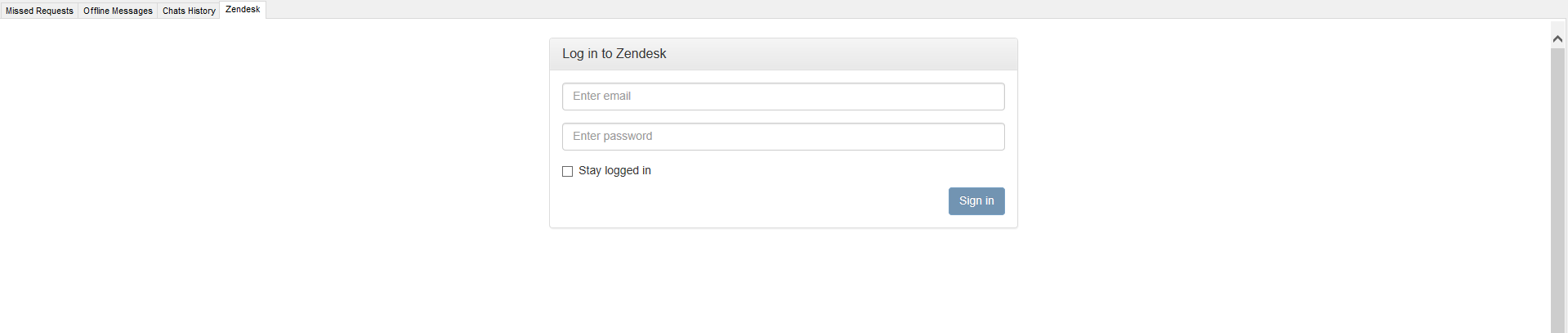
Now that you have finish enabling Zendesk for OCC, go to the agent (if agent was logged on before you enable access you will be required to disconnect and reconnect) then click on Zendesk in the toolbar to log on to your zendesk account.
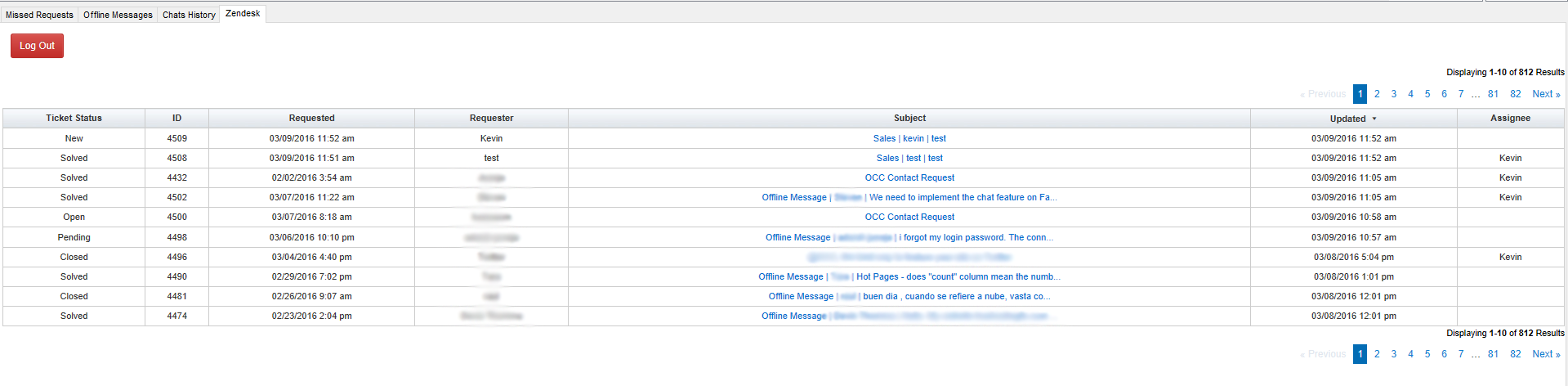
This is the main hub of the zendesk integration, in here you will be able to see all tickets
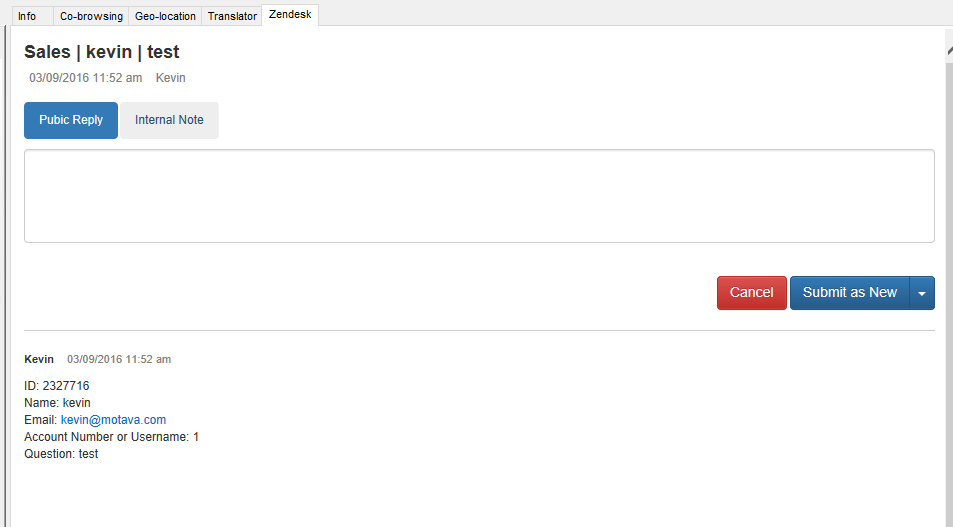
This is the view in the when you open a ticket. You will be able to view any comments made by the visitor, other agents and yourself. This and the all tickets page will be the main view of the zendesk app.
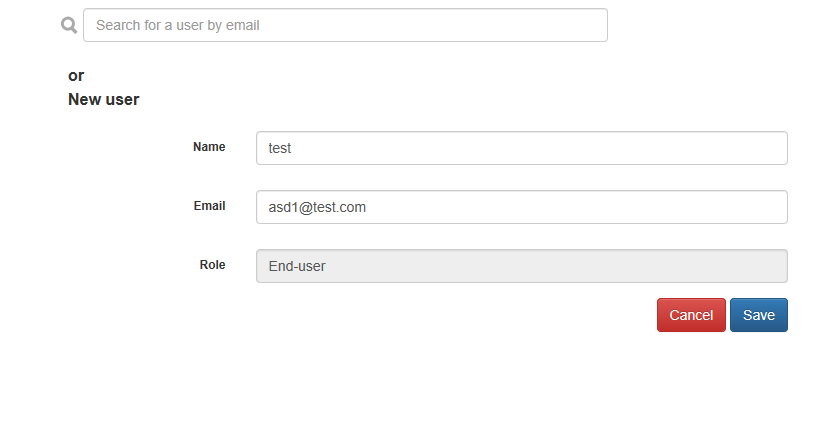
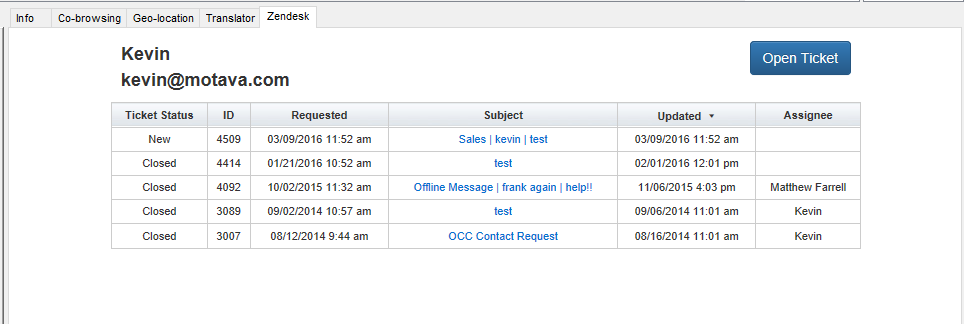
The application we automatically detect if the visitor has a tickets opened up previously. If not, you will be giving this screen where you either create the user or search if visitor has another email attached to zendesk. If the visitor has any tickets it will be shown here.
Hello OCC members.
Today we are introducing advance operator stats. This new option will show you some nice and clean stats for the operator.
To view the new stats, you will need to have access to the reports tab (Admin Accounts will have this on by default). To check/enable you will go to the Account Dashboard > Setup > Operators and click the edit button to change the operator permissions.
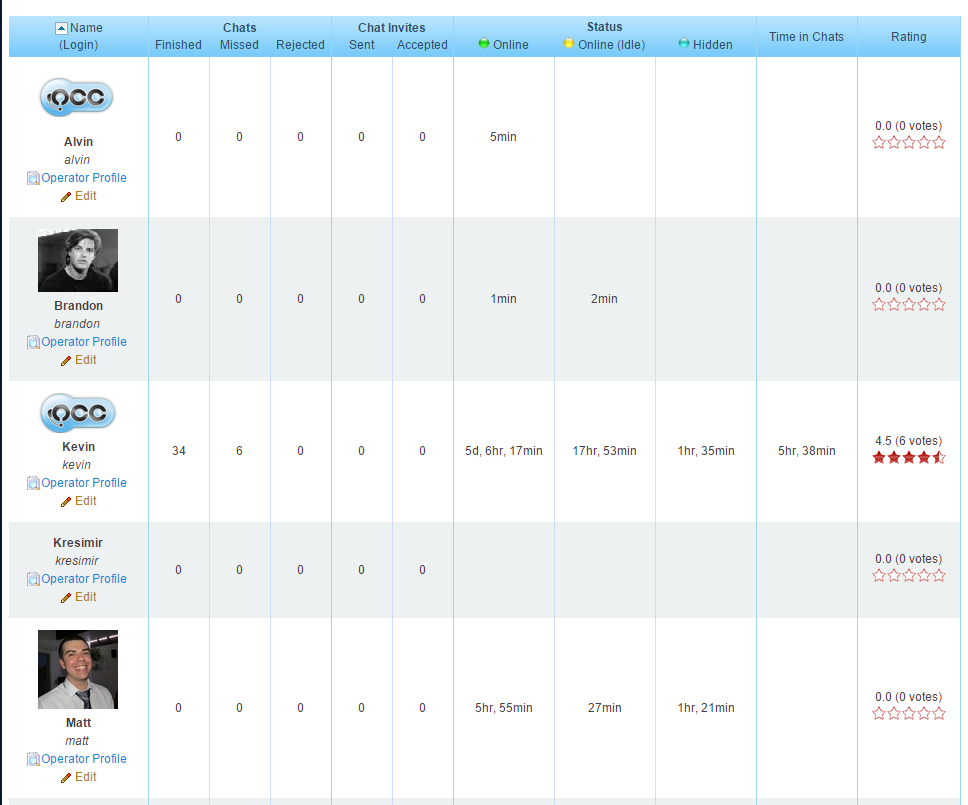
In here you will be able to find some new stats that you were not showed before like how many messages has this operator sent, which time of day are your chats and more.
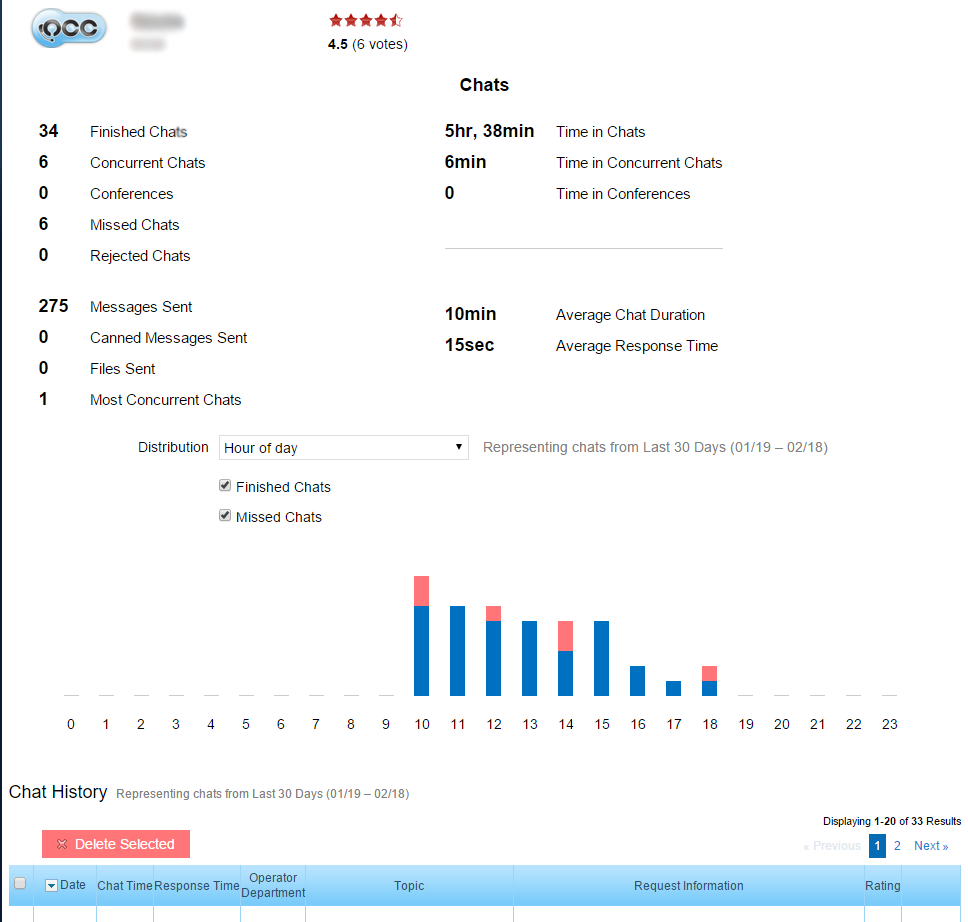
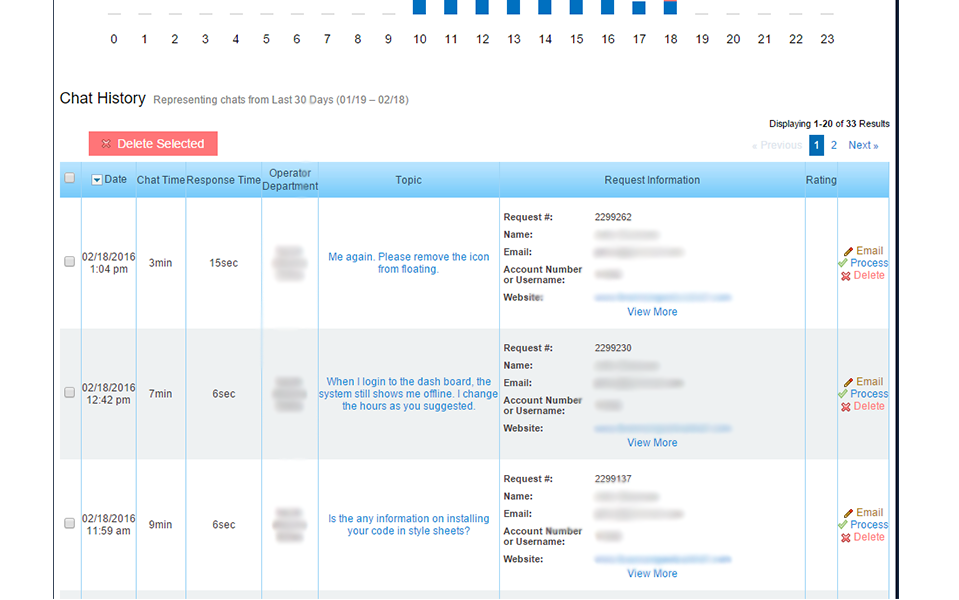
Once you scroll down, you can see the chat history of the operator.
With the Holidays just around the corner, we are releasing these 3 icons for you to use.
To enable one these icons please go to the Account Dashboard > Setup > Design Customization > Online/Offline Icons and then scroll to the bottom and select which icon you like the best.
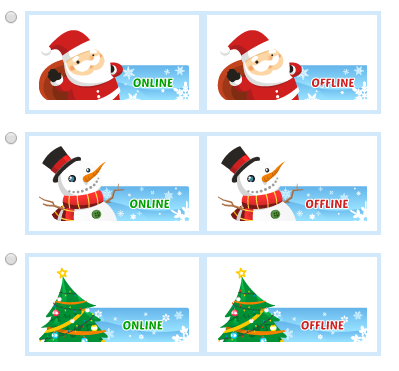
*Note this does not work with the new embedded chat
Hello OCC Customers
Happy Halloween from OCC!
Today we are happy to announce new mobile chat compatibility. Now your site visitors will be able to chat with your agents while using their mobile devices, just as seamlessly as they would through a desktop session. The UI for the mobile chat will resemble our new desktop embedded chat style which was released just a couple of months ago; so if you or your visitors are already familiar with that UI then this update will make your chat service more uniform to them. If you wish to learn more about the embedded chat layout, make sure check out our previous blog entry here.
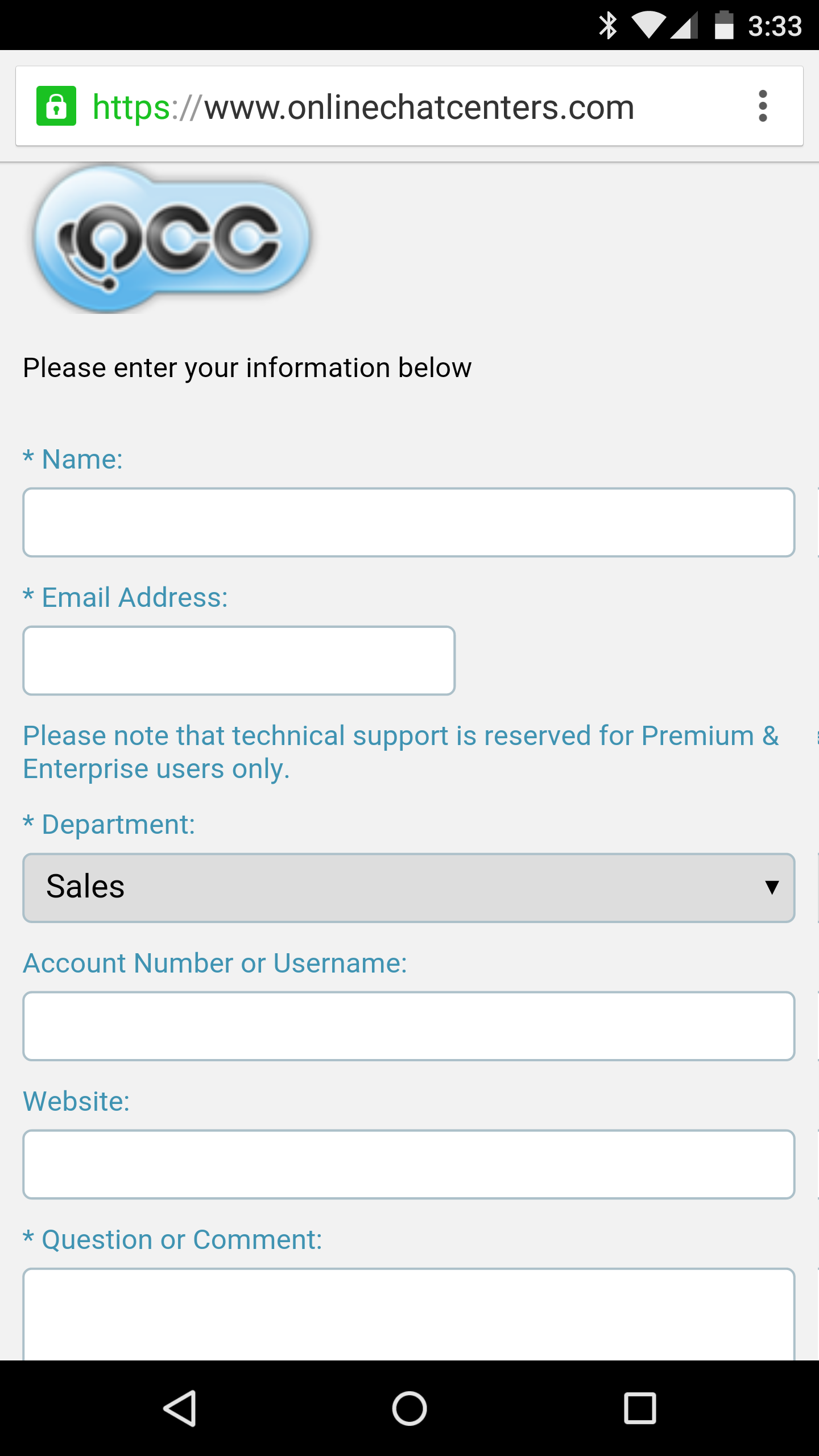
This month we are proud to introduce OCC’s most requested feature from our members: Embedded Chat (For Premium/Enterprise Users Only). What does this mean? This will allow you to choose a simpler and more elegant live chat design for your website. With this feature, your visitors can communicate within the same browser window with your operators instead of needing a separate browser window or tab.
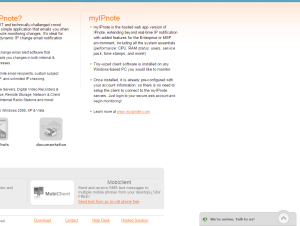


With embedded chat enabled, you will have customizable online and offline messages for your visitors to see – while retaining the OCC Chat symbol displaying your online/offline status.
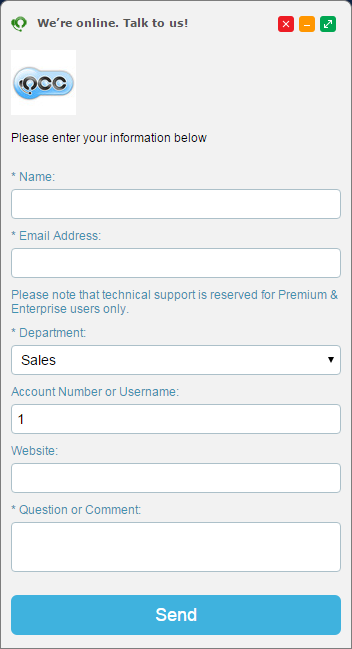
Here is a preview of the new chat request form which will conform in size to the number of fields you have configured for new requests.
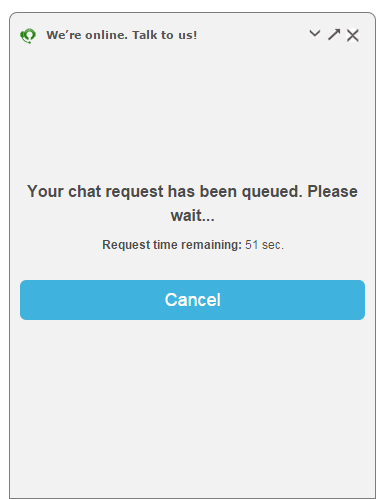
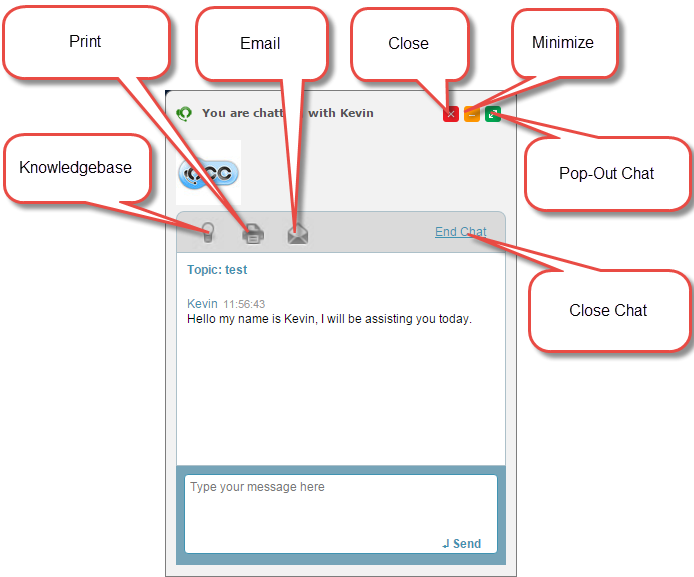
This is the heart and soul of the new chat style. In this new layout your visitors will be able to speak to your operators, explore your knowledgebase, print/email the chat, all while staying on the same browser window. They will be able to navigate throughout your website while maintaining a chat with your operators, regardless if your visitor navigates to other pages.
Additionally, your visitors have the ability to move or minimize the chat box around the screen for situations where they may need to view the page behind it. Visitors also have the option to pop-out the chat box to our classic chat style, and switch back if they choose to.
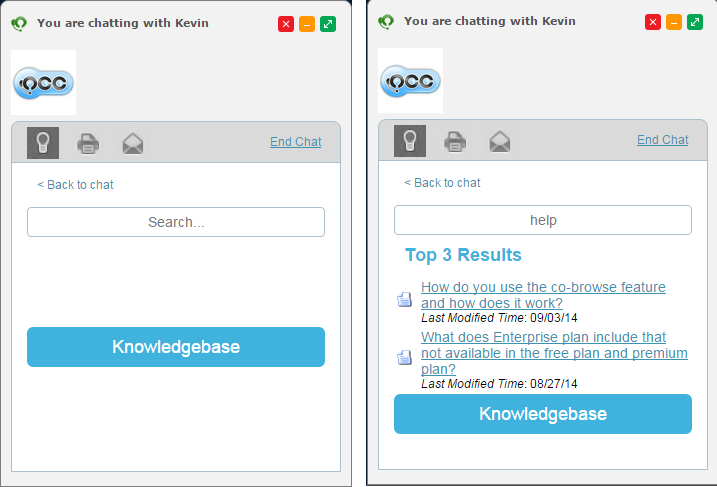
Searching the knowledgebase will display the top 3 responses for the given search string. If the result is not displayed, your visitor can click on the blue knowledgebase button (or the view more – not in the image) to open up the knowledgebase in a separate window.
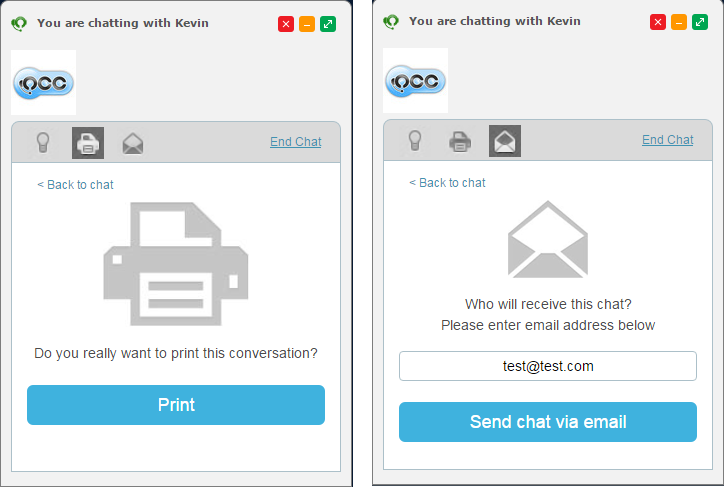
At any time during the chat your visitors can either choose to email or print out the transcript of the current chat.
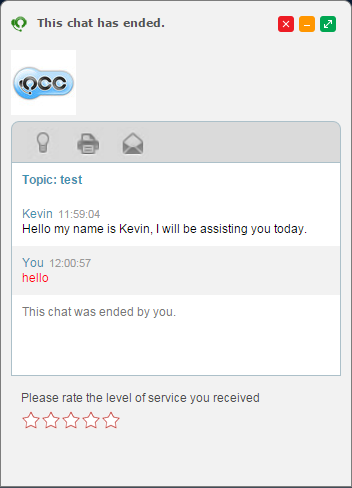
Once the chat has ended by either the operator or visitor, the operator rating for the chat will appear (this is enabled by default, to disable: go to your Account Dashboard > Setup > Global Account Settings)
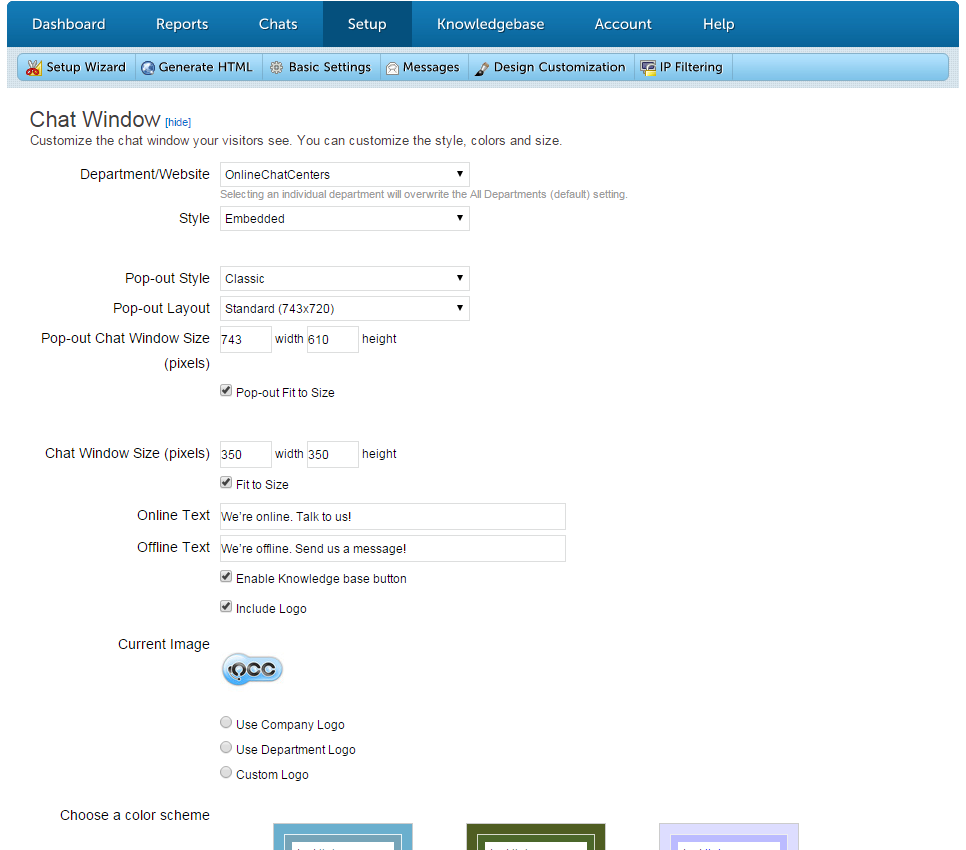
To enabled the embedded chat style for your website, go to your Account Dashboard > Settings > Design Customization > Chat Window. Wtihin these settings you will be able to adjust the text for the online/offline messages, adjust the pop-out window size and more. *Note make sure you select your department, unless you are generating a code for all departments*
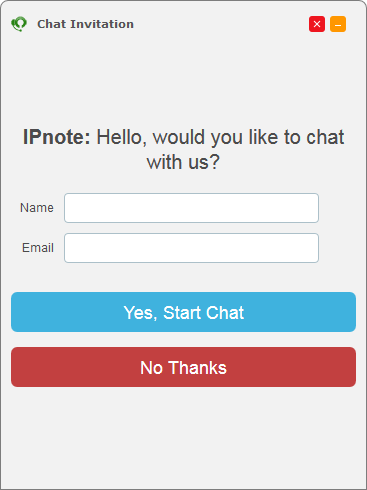
With the new embedded chat release we are also introducing a new automatic invite for our members to use, keeping a clean and modern look to the entire customer chat experience.
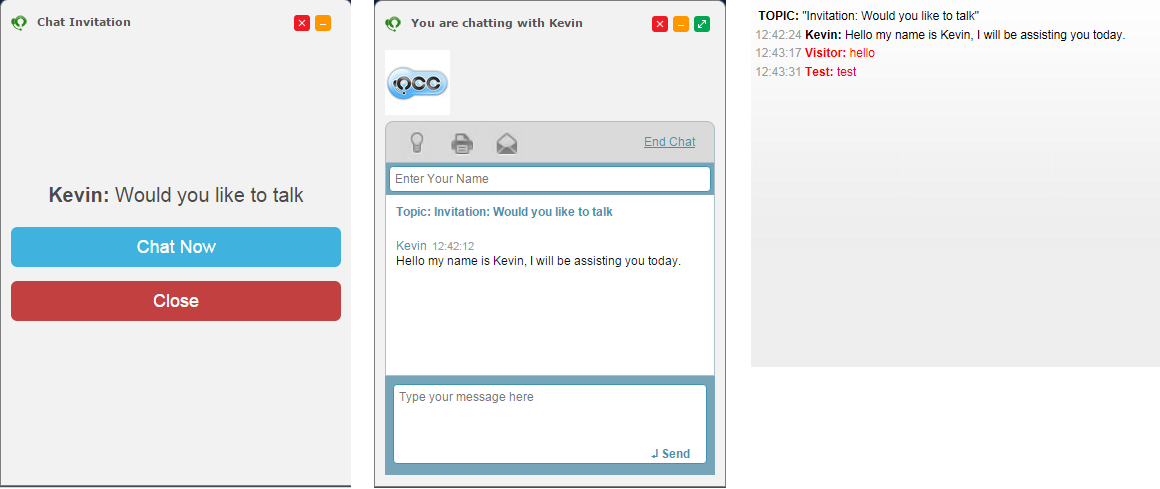
When sending manual chat invitations, or when you have your account set to bypass the chat request form, your visitors may now enter in a name and email address right off the bat. This will allow you to always capture your visitors contact information as well as be used for our future software integrations that will be coming out in the coming months.
