Posts Tagged ‘occ features’

Improved Canned Messages, New Offline Settings, Print Chat & Translation Stats

Written by: Categories: Features,News
November 26th, 2012

On Friday of last week, we posted some pretty significant to updates to OCC, with some further refinement this week:

Print Chat

This is a new feature for visitors to your website requesting a chat. Directly from the chat window, visitors can print a transcript of the chat they’re having with you or your operators. The Print Chat option is automatically enabled for accounts but can be disabled from your Account Dashboard under Setup > Basic Settings > Global Account Settings

Check out the look of the new button below

Print Chat Transcript

Offline Settings – Hide Icon & Disable Offline Messages

We added 2 more Offline Settings that were highly requested by our users. Both of these options are for Premium & Enterprise users only and can be found in your Account Dashboard under Setup > Basic Settings > Offline Settings

Each of these settings is definable per department/website like most of the other features within OCC:

Disable offline messages but do not hide chat icon – When all your operators are either hidden or offline, this option will show your offline icon but will disable offline messages. It is a setting we had before but it was not able to be set per department.

Hide live chat icon – When you’re offline, this setting will NOT show your offline icon but will instead completely hide the icon. OCC is still tracking visitors to your site but the icon will not be displayed to visitors.
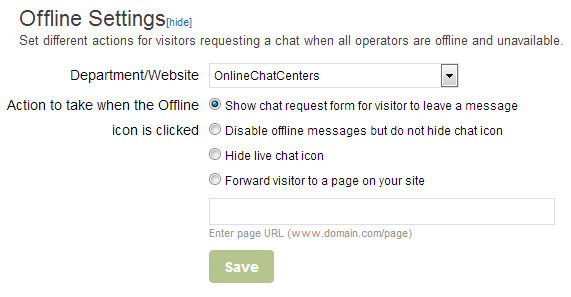
Offline Settings

Canned Messages – Initial per department and per operator

Canned messages can now be individualized further by having the initial message defined per operator or per department or both!

Find this function in your Account Dashboard under Setup > Messages > Canned Messages

In the example below, if “Send as Initial Message” is selected, you can then choose which department/website and/or operator will use the message as their initial greeting to the chat visitor. The per operator selection will override the department selection.

For example:

1. Message A is set for all departments
2. Message B is set for the OCC department
3. Message C is set for OCC department and Victor
4. Message D is set for all departments and Brandon

All operators will send Message A for all departments except OCC department which sends Message B except if Victor accepts the chat then it is Message C.
If Brandon accepts a chat from any department, he sends Message D.

There are checks for each scenario that will prompt you if a conflict arises. Below is an example of how the initial message setting now looks:
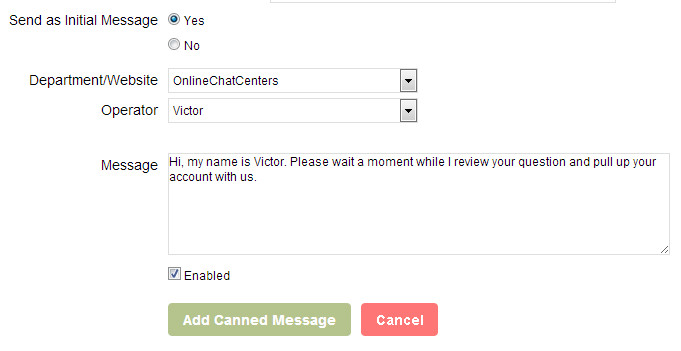
Per Operator Canned Messages

Translation Statistics

And, finally, we added some pretty cool and useful graphs to our Translation Program that displays what percentage of each language we have translated for each portion of OCC for each language.
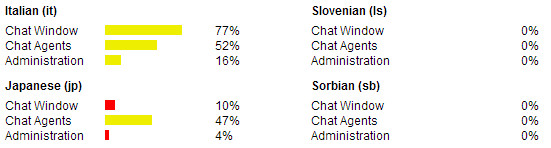

Translation Statistics

OCC Windows Updates: Invited Icon, Multi Chats, Ending Chats, Fixes

Written by: Categories: Features,News
December 6th, 2011

Some updates to the OCC Windows Software were officially released today in version 2.0.56.4. Updates to the Mac and Web versions will be released in the next couple weeks.

You can download the latest OCC software for Windows here

Invite Sent Notification

In previous versions, OCC operators had no notification displaying whether a chat invite was sent to a visitor or not. In the Topic column, we added a notification that is global to all operators displaying one of 4 statuses for invites sent:

Auto Invite Sent
Auto Invite Rejected
Manual Invite Sent
Manual Invite Rejected

Manual live chat invite sent

Manual Invite Sent Notification

Multiple Chats – Hotkey to Switch Chats & Messaging

A much requested feature has been to add a hotkey to switch between chat tabs when in multiple chats. Now when CTRL+Tab is hit, you will switch between chat tabs. Previously, there was a small bug in disappearing text between chats. Now the message you type in one chat will remain and not disappear when you switch.

live chat hotkeys

Press CTRL+Tab to switch between chats

Ending Chats: Chat Remains on Screen & Timestamp

Chats now remain on the Operator’s screen after they’ve been ended and even after a visitor has left the website. This is a particularly useful feature that allows operators to review the chat or email the transcript without digging through their live chat history.

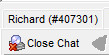
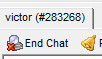
Now the End Chat icon changes to Close Chat after the chat has ended. Clicking Close Chat will close the chat window. A timestamp has also been added to the ending chat text.

End Live Chat

End Chat

Close Live Chat

Close Chat

Operators List: Number of Chats Display

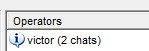
The Operators list now displays the number of chats an operator is currently involved in. A simple but useful addition!

Operators List - Number of Chats

Operators List - Number of Chats

Other Minor Updates

Other minor updates worth mentioning include:

  • Language Translation API Update (now works better and supports new languages)
  • Emails coming from the software will now come from the department email address
  • “Came From” in Visitor Information has been changed to “Referring Page”
  • “Came To” in Visitor Information has been changed to “Landing Page”
  • Browsing & Processing Chats (Missed, Offline & History) in Agent improved and sped up
  • Chat Invite pop-up – you’re now able to click away from the chat invite pop-up

You can download the latest OCC software for Windows here

Chat History – Archiving Limit & Page Navigation

Written by: Categories: Features,News
June 10th, 2011

The chat history section of the administration section has been updated with 2 highly requested additions: removal of the archiving limit and page navigation.

Chat Arching Limit Removal

Premium Version accounts no longer have a chat archiving limit of 365 days (the default is 30 days). Chats are now automatically stored forever for our OCC accounts.

Free Accounts still have a 30 day chat archive limit.

Page Navigation

To accommodate for the additional chat history storage, we added page navigation to the Chat History sections.

Page Navigation in OCC Chat History

Page Navigation in OCC Chat History

Upcoming Features

We have many features still in development, beginning with the Chat History and Operator Stats Reports and beyond. Some features being added to these reports:

All reports – filtering for common and custom-defined date ranges

Operator Stats – addition of time in chats, status times and more for each operator.


Stay updated on these developments and more via our Twitter, Facebook and this blog.


OCC Agent Updates: Chat Tab Names, End Chat Message, Email Chat Transcript

Written by: Categories: Features,News
June 1st, 2011

Today we released an update to all of our OCC Agents which includes the following updates:

Chat Tab Names

Chat tabs now contain the name of the visitor as well as the unique ID of the chat visitor.

chat tab names

Chat Tab - Names

End Chat Messages

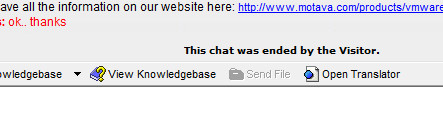
The message displayed at the end of a chat are now more descriptive, showing whether it was the visitor or the operator who ended the chat.
Screenshots of the ended chat messages seen below:

OCC live chat ended by visitor message

Chat ended by Visitor

OCC live chat ended by Operator

Chat ended by Operator

Email Chat Transcript from Chat History

You now have the ability to email the entire chat transcript from individual chats found in your chat history. This is available through all the OCC Agents and the Chat History section in the administration section. The screenshot below is from the administration section.

Email Chat Transcript from Chat History

Email Chat Transcript from Chat History


Some other minor edits were also included:

– Columns in the Agents were changed – Current Page was added to display the current page the visitor is browsing.
– Messages displayed for users joining and leaving chat conferences were added.
– Messages displayed for chats being forwarded changed.

Download / Access the latest OCC Agents:

OCC for Windows
OCC for Mac
Web Agent


Feature Update – Banned Visitors to IP Filtering

Written by: Categories: Uncategorized
December 6th, 2010

For a long time, we had “Banned Visitors” as a feature in the administration panel where you could define an IP address range to hide from being monitored in the OCC Agent. Visitors could still request a chat, however, so the feature was mislabeled and misunderstood.

We’ve updated this section to now be named IP Filtering with ability to define an IP range to be hidden from the OCC software or hidden and blocked from requesting chats.

The most common use for IP Filtering would be to Hide your IP from being monitored and Block / Ban IPs that are sending spammy or offensive chat requests.

OCC IP Filtering Feature - Ban/Block & Hide IPs from OCC live chat

OCC IP Filtering Feature - Ban/Block & Hide IPs from OCC live chat

Chats Sections: Redesigned

Written by: Categories: Features,News
June 30th, 2010

One of the most important features of a live chat system is being able to look at your chat history and respond to offline and missed chat requests.

We’ve been redeveloping these sections of the administration section and both the web and desktop chat agents to be more user friendly and efficient to use.

Before – Missed Chat Request

Our old layout in the administration section lacked definition between chat requests, lacked functionality in contacting visitors and displayed information in an inefficient manner, putting too much focus on the visitor’s information rather than the topic/question they asked.

Missed Chat - Old Design

Missed Chat - Old Design


After – Missed Requests, Offline Messages and Chat History

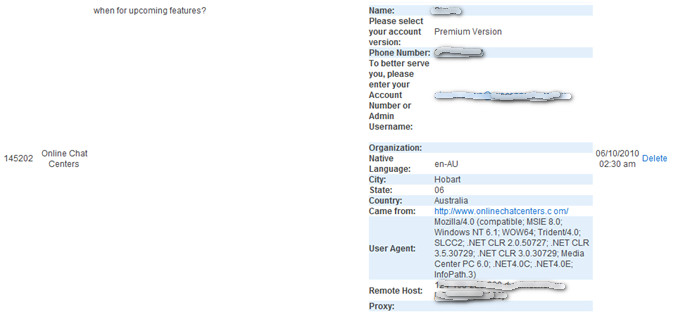
The old menu lacked other essentials – mainly, the ability to email chat request visitors and the offline messages were not viewable at all. Although accessible through the chat agents and sent via email, a central location for all missed requests in the dashboard was needed.

The redesign of this section can be seen below:

Offline Message - After Redesign

Offline Message - After Redesign


The chat request information was all neatly condensed for easy browsing, with all 3 sections listed in a similar fashion. The request information is no longer so large, showing only critical information about the chat request with the full information regarding the visitor accessible by clicking the “View All Request Information” link.

In addition, we’ve listed 3 actions to take with the request – email the visitor, mark the request as processed and delete it completely from your history.

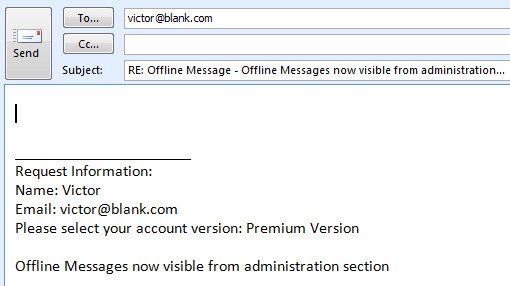
Emailing the visitor will automatically populate the message with all the request information in your default mail client software:

Automatically populated Email from Chats Section

Automatically populated Email from Chats Section

We’ve also added a new filtering option for our users with multiple departments or websites and search functionality within the Offline Message and Missed Requests section:

Search Filters within Offline & Missed Requests

Search Filters within Offline & Missed Requests

All the design changes have also been implemented in the web and desktop chat agents, easily accessible from whatever location you are monitoring your site from!

New Features & Updates: Web Agent – Email Signature & Columns

Written by: Categories: Features
March 1st, 2010

2 small features added to the web agent today:

– Email Signature code generation. To use, go to Account –> Email Signature in the Web Agent.

– Column Customization – You can now Show/Hide the columns in the Web Agent. To use, go to View –> Columns in the Web Agent.

Use the web agent here: www.onlinechatcenters.com/agent